

Quick Start
Getting Started with Locbox
Introduction
Locbox (L.O.C. – Leidos Operations Center) is a cloud-native operations platform built to modernize your enterprise workflows. Derived from the legacy L.O.C., Locbox offers real-time monitoring, seamless cloud integrations, and scalable orchestration to manage distributed services with ease. Locbox is composed of several core parts:
Locbox
Your ground operations portal providing an intuitive, real-time dashboard to manage and monitor your enterprise workflows.
Microservices
Manages the heart of your operations by processing real-time data, handling orchestration, and providing secure integrations with various cloud services.
Locbox CLI
A robust command-line interface that automates deployments, streamlines configurations, and enhances operational efficiency.
Locbox SDK
Our comprehensive developer kit that seamlessly connects legacy systems, modern APIs, and external databases to centralize all your operational data.
Want to dive deeper?
Check out our comprehensive Locbox Overview for detailed insights into each component.
Terminology
Cloud-Native: Applications optimized to leverage cloud computing architectures.
Dashboard: Your central hub for monitoring real-time operations and metrics.
CLI: The command-line interface used to automate and manage deployments.
SDK: A Software Developer Kit that provides libraries, tools, and documentation to build and integrate custom solutions with Locbox.
A basic familiarity with modern cloud architectures—as well as a solid understanding of space operations and ground control procedures—is recommended for getting the most out of this Quick Start guide.
Access & Onboarding
Locbox is a secure, cloud-hosted platform that you can access only by invitation. To maintain the highest security standards, access is granted through an approval process via Okta—and in some cases, NAMS. Locbox maintains FedRAMP Moderate compliance, employs a zero trust architecture, and protects Controlled Unclassified Information (CUI) to ensure robust security for your operations.
Requesting Access
To get started, please contact your system administrator or email benjamin.c.wichmann@leidos.com to request an invite. Once approved, you'll receive instructions for your first login.
After your invite is approved, follow these steps:
- Visit console.leidos-locbox.com.
- Log in with your approved credentials.
- Complete the initial onboarding process, which includes setting up your profile and reviewing the user guidelines.
Leveraging Okta for identity management, Locbox ensures that only authorized personnel can access the system. Our security measures include FedRAMP Moderate compliance, a zero trust architecture, and robust protection for Controlled Unclassified Information (CUI).
Our guided setup walks you through profile customization and essential configurations for a seamless start, ensuring you quickly become proficient with Locbox.
Receive instant alerts and updates on operational events, keeping you informed and ready to act in real-time.
Access detailed documentation and dedicated support channels to help you maximize your Locbox experience, ensuring any challenges are swiftly resolved.
Once onboarded, you'll be ready to explore the full suite of Locbox features via our intuitive web interface. (Note: The Locbox CLI and SDK are in development, so for now, your primary interactions will be through the web portal.)
Get Started!
Once you log in to Locbox at console.leidos-locbox.com, you'll land on the overview page of your tenant—a central hub for all tenant-related operations. Follow these steps to get up and running:
Team Overview
- Cards Display:
Based on your permissions, you'll see one or both cards for Missions and Initiatives.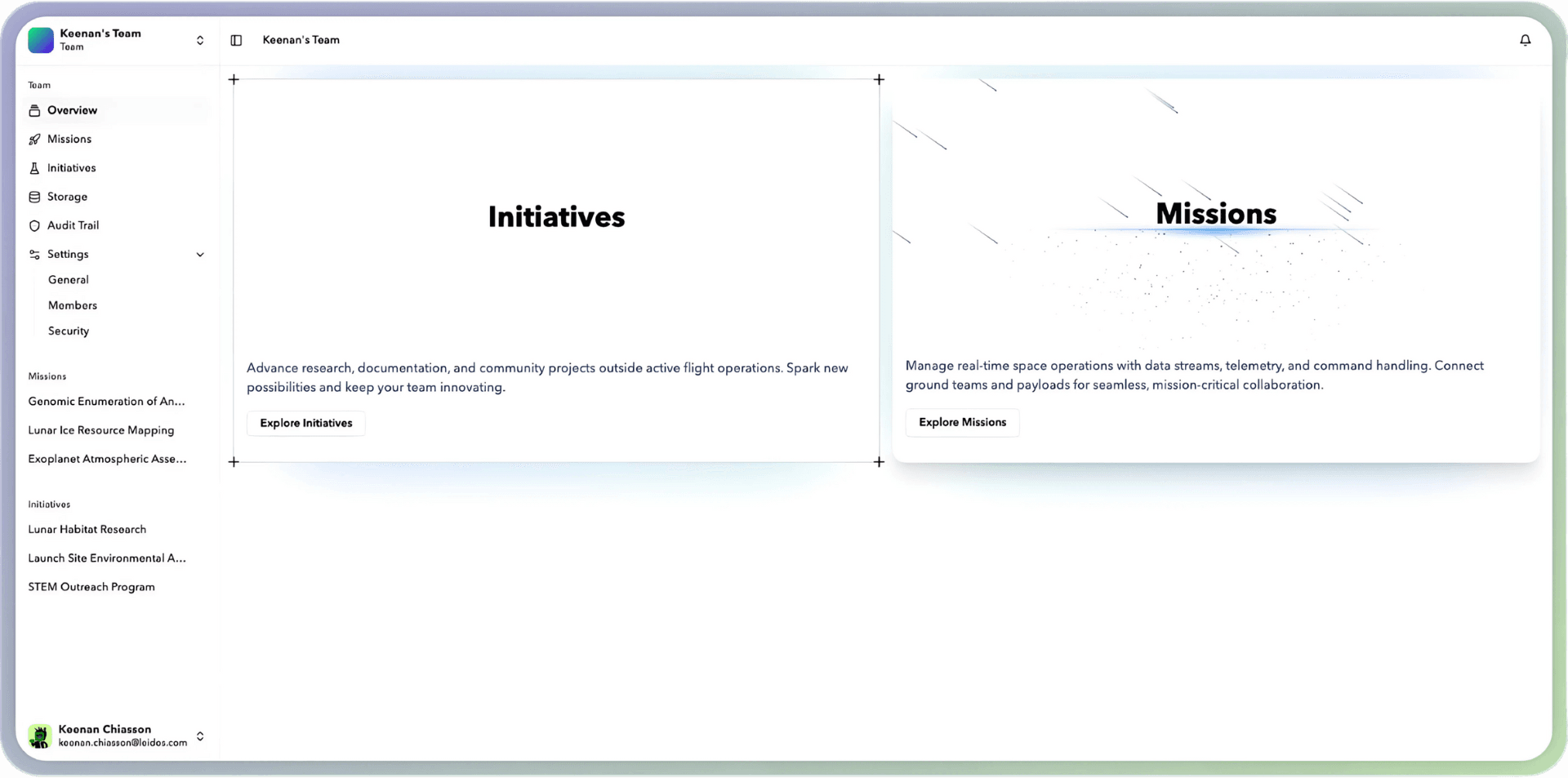
Team Overview - Team Switcher:
Located at the top of the sidebar, use the TeamSwitcher component to select your personal account, switch to another team, or create a new team.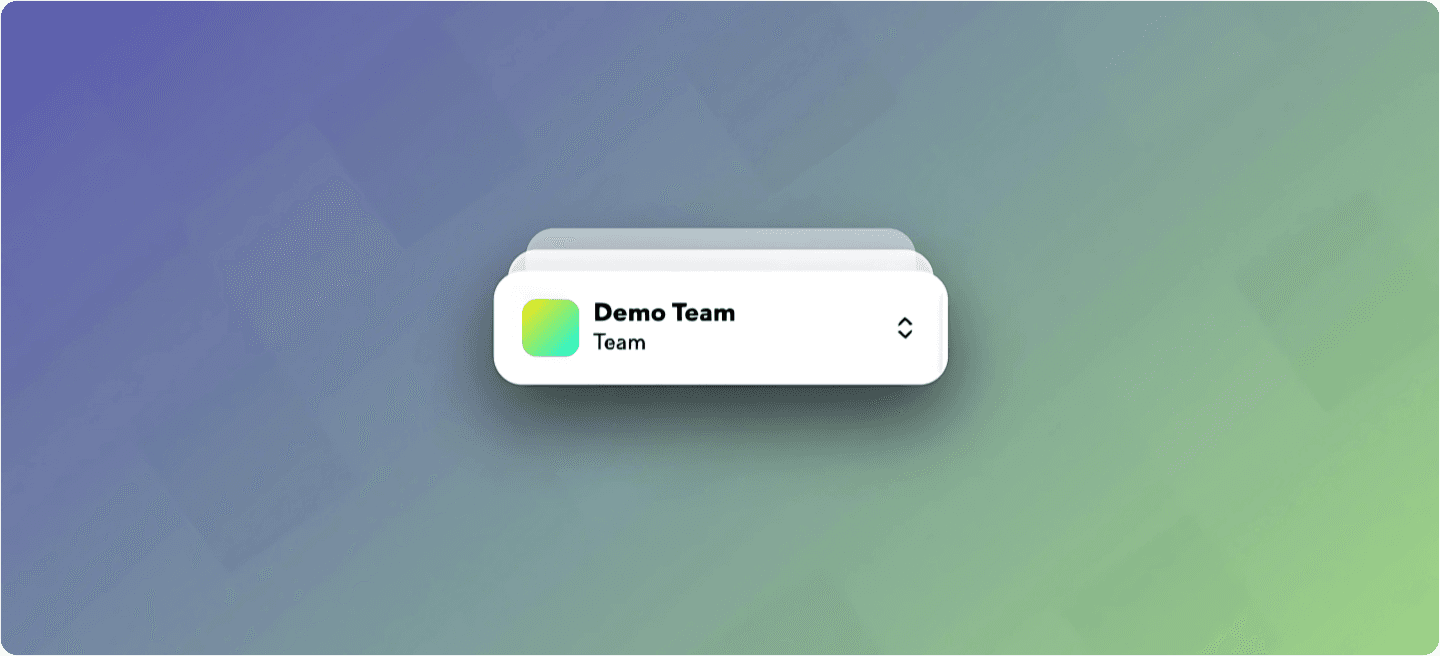
Team Switcher - Top Navbar:
At the top, you'll find a button to collapse/expand the sidebar, the current team name (or breadcrumb navigation as you dig deeper), and a notifications bell for real-time alerts.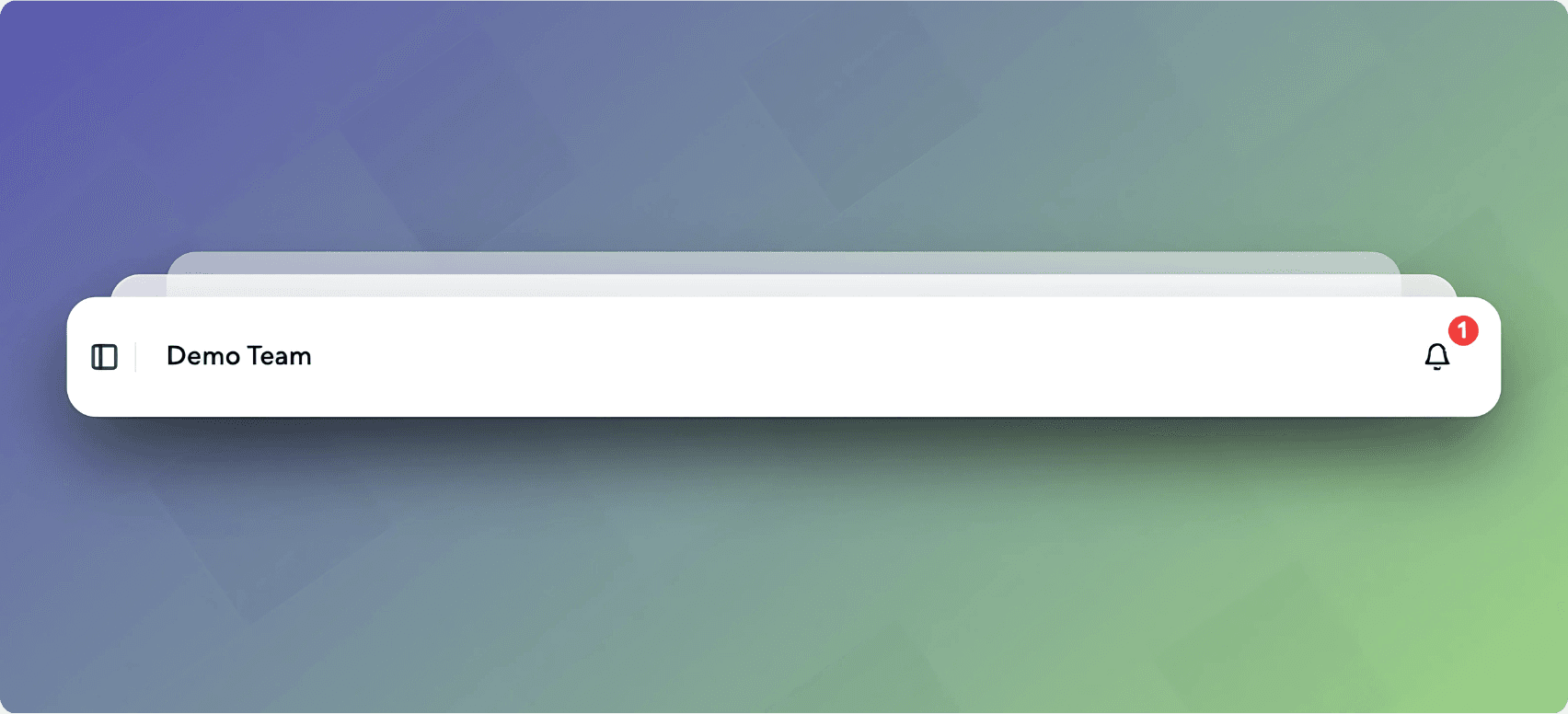
Navbar
Sidebar Navigation
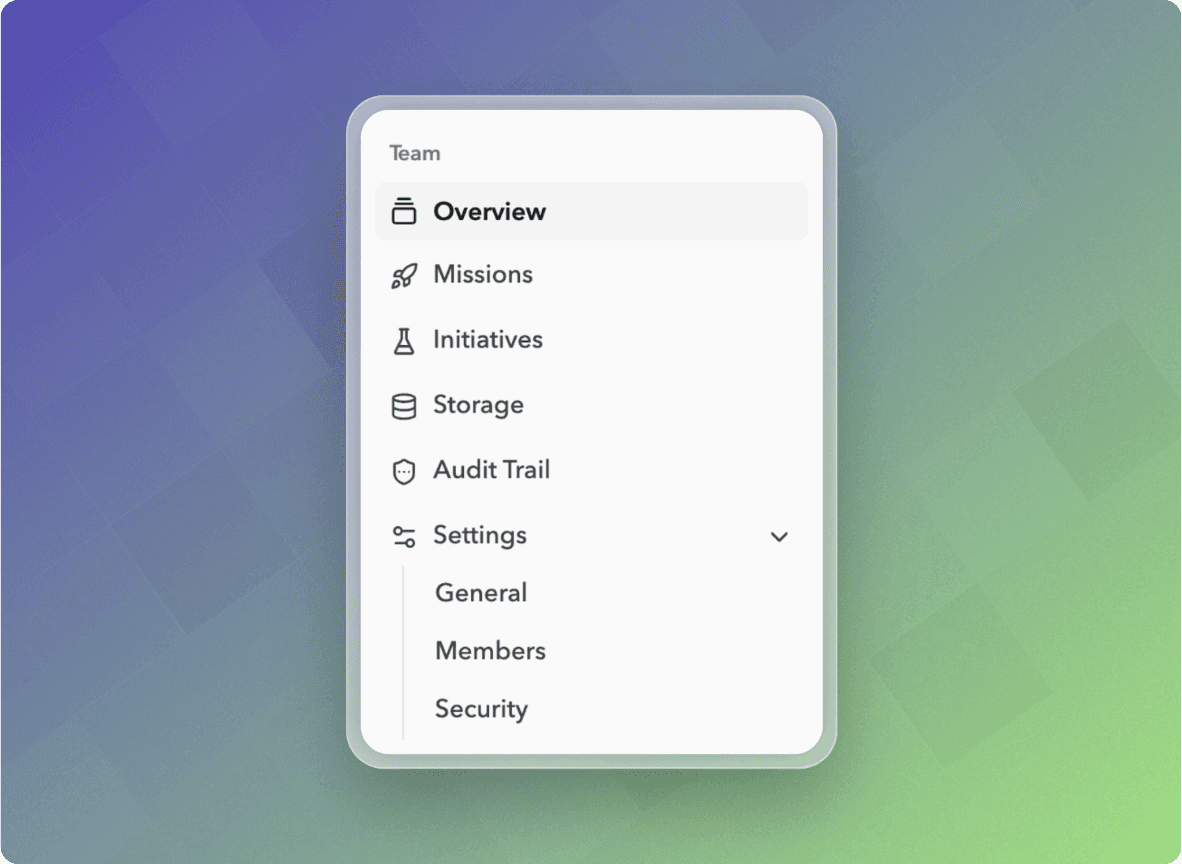
- Team Section:
Under the “Team” header, navigate using these buttons:- Overview: Your landing page.
- Missions: Go to the Mission Select page.
- Initiatives: Access the Initiative Select page.
- Storage: Manage your team's files.
- Audit Trail: Review activity logs.
- Settings: A collapsible menu (open by default) with:
- General: Update your team's basic information and preferences—modify the team name, description, and default configuration settings.
- Members: Manage your team's membership by inviting new users, assigning roles, and controlling permissions to ensure the right access for everyone.
- Security: Configure security settings such as password policies, two-factor authentication, and audit log reviews to maintain compliance with FedRAMP Moderate standards and a zero trust architecture.
Team Navigation - Missions & Initiatives Lists:
Further down, you'll see dedicated sections for Missions and Initiatives. Each displays up to three items with an options menu (offering actions like Copy Link, View Mission, Open in New Tab, etc.). If more exist, a “More…” button lets you explore additional entries.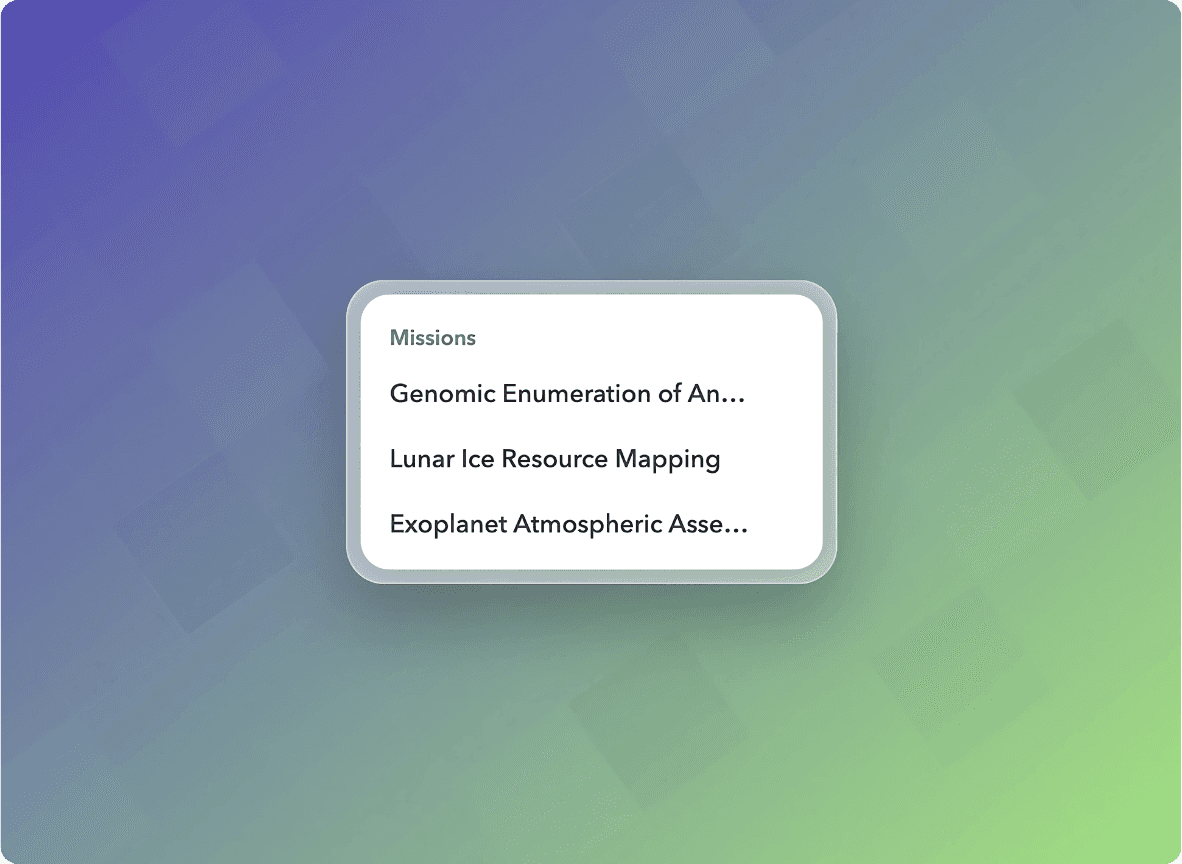
Sidebar Missions - Profile Section:
At the bottom of the sidebar, click your profile button (displaying your avatar, name, and email) to access further options like Toggle Theme, Account, Settings, Notifications, and Log Out.
Profile Button
Navigating to Your Dashboard
- Select a Mission or Initiative:
Click on a card from the main page (Missions or Initiatives) to navigate to the corresponding Mission/Initiative Select page. - Mission/Initiative Dashboard:
Once selected, you'll be directed to a dedicated dashboard that provides:- Permissions: Details on your access roles.
- File Storage: Insights into your team’s file management.
- Live Video Feeds: Real-time visual monitoring.
- Realtime E-log: Continuous logging of events.
- Live Telemetry: Up-to-date operational data.
- Voice Loop Modules: Integrated communication tools.
This structured workflow ensures you can easily navigate between team overview, mission/initiative management, and detailed dashboards—all designed to empower your operational efficiency. Enjoy exploring Locbox and tailoring your experience to your team’s unique needs!
Explore Your Project
Your Locbox project comes pre-organized with several key components:
- lib/operations.ts: Contains core logic for integrating with cloud services and processing real-time data.
- app/layout.config.tsx: Defines shared layout configurations and responsive design settings.
- app/api/status/route.ts: Provides an API endpoint to fetch live operational metrics.
| Route | Description |
|---|---|
app/(dashboard) | The central hub for your operational dashboards. |
app/operations | Detailed pages for managing and monitoring operations. |
app/api/status/route.ts | API endpoint for real-time status and metrics. |
Customize Your Operations
Locbox connects with a multitude of data sources and systems:
- Data Integration: Use built-in adapters to connect with legacy systems, modern APIs, or external databases.
- Custom Connectors: Build your own connectors if the pre-built options don’t cover your needs.
- Configurable Workflows: Tailor data processing pipelines and alert rules via configuration files.
Customize Your Dashboard
The dashboard is built using a flexible page tree structure that defines the navigation layout. Learn more about organizing your pages:
Managing Operational Workflows
Locbox isn’t just about monitoring—it’s also built for automation:
Setting Up Alerts
Configure real-time alerts to stay on top of critical events.
Creating Workflows
Automate routine tasks and streamline operational processes.
Customize the User Interface
With a design system built on Tailwind CSS, Locbox UI can be fully personalized. Change themes, adjust layouts, and modify styles to match your organization’s brand:
npm install @locbox/cli --save-devOr install using your preferred package manager:
pnpm locbox addFAQ
Learn More
New to Locbox? We’re here to support your journey. If you have any questions or feedback, join our Community Forum.
Configure Auto Scaling
Learn how to set up auto scaling to handle variable workloads.
Customize Alerts
Set up and fine-tune alerts for critical operational events.
Theming
Personalize Locbox UI with custom themes and styles.
UI Components
Explore all available components to enhance your dashboard.
This comprehensive MDX file uses frontmatter, headings, code blocks (including package-install examples), tabs, cards, callouts, accordions, and file structure previews to provide a robust Quick Start guide for Locbox. Enjoy building and customizing your cloud-native operations center!